Summary Method
Share
Summary method
How to format summaries in frequently used cases but also introduce less obvious uses for summaries.
Anaplan definition: Summary method defines how line item totals and hierarchy aggregations are calculated
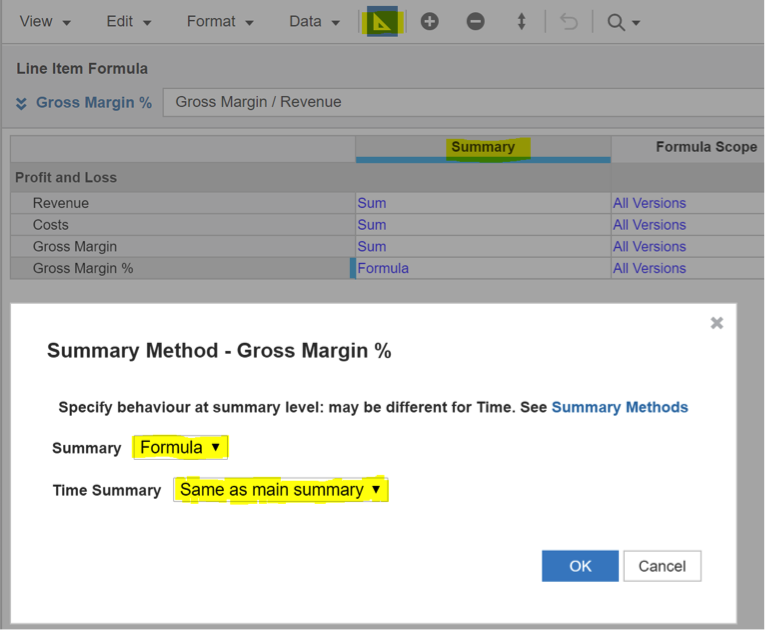
Setting Summary Method
- Open Blueprint
- In the Summary column for a chosen line item click the ellipsis
- Specify Summary Method in the pop-up box
- Summary: Aggregation method across all your hierarchies
- Time Summary: Applicable only if a module has time dimension
Remember: Time Summary is always set by default as ‘Same as main summary’, but you should change it where needed.
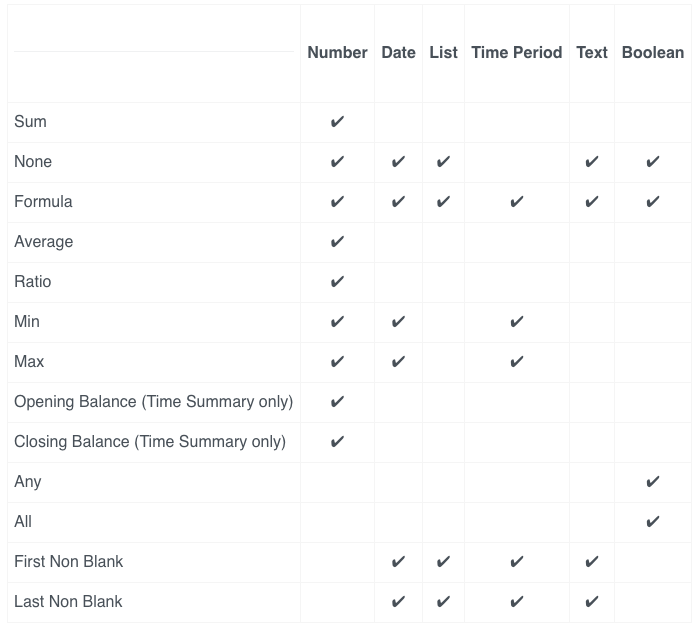
Summary Method Options by line item format
Remember: not all summary options are available for each line item format
Sum – Default summary for number formatted line items.
None – Default summary for non-number formatted line items. Should also be used for any non-essential and meaningless summaries.
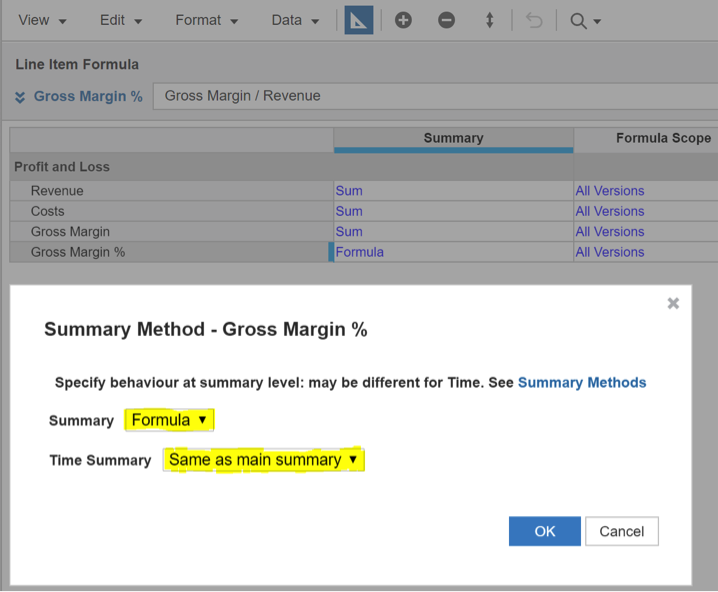
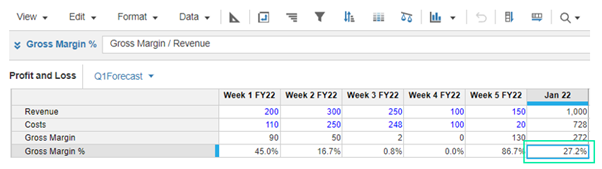
Formula – most frequently used in % Number formatted line items, e.g. % Margin. In such case, adding individual % margins across whole hierarchy doesn’t make sense.
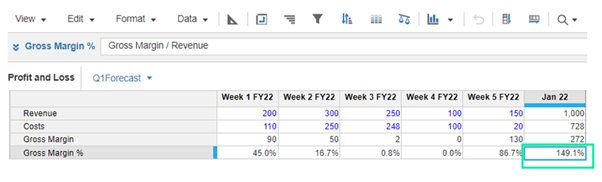
‘Formula’ Summary Method to aggregated amounts should be used to provide a meaningful number.
Average and Ratio
‘Average’ Summary Method means a simple arithmetic average. Note that it takes into account periods or list items with ‘0’ value.
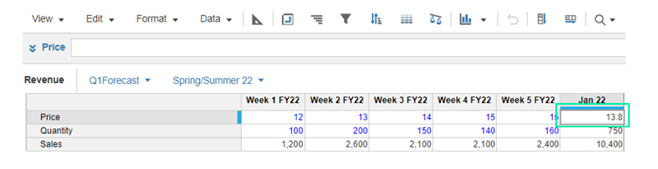
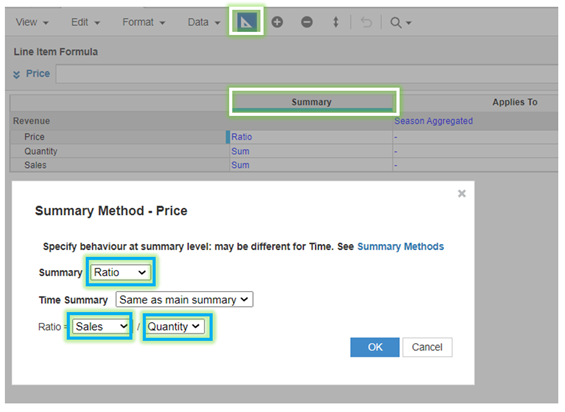
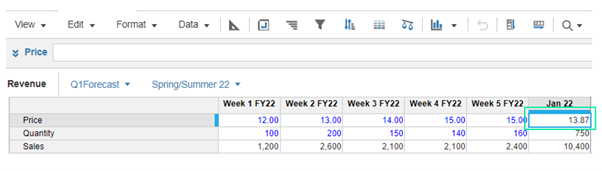
In order to apply weighted average for calculating e.g. average price, you should use ‘Ratio’ Summary Method. You always need to specify the line items used to calculate a ratio.
In this case, set Summary Method as Ratio of Sales to Quantity to calculate weighted average selling price across company and time.
Watch out for ‘NaN’ if denominator in your calculation has a ‘0’ value.
Min and Max
Watch out for ‘Infinity’ and ‘-Infinity’ if a parent item does not have at least one child.
Opening and Closing Balance
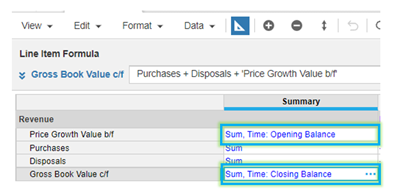
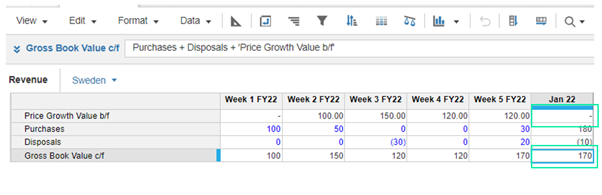
Opening and Closing Balance is most frequently used in the balance sheet related calculations, e.g. fixed asset gross book value calculation.
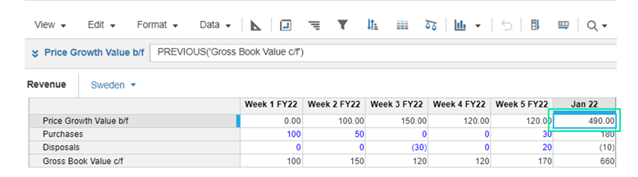
Brought forward line items should be set as ‘Opening Balance’ and carried forward line item should be set as ‘Closing Balance’.
All and Any
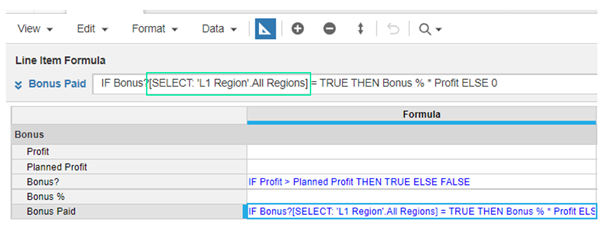
These Summary Methods are used only for Boolean formatted line items, e.g. when a condition is met across whole company, certain calculation is performed.
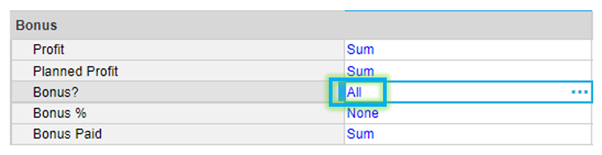
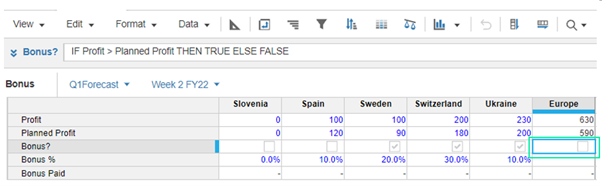
In this case we calculate bonus only when all regions meet their planned profit target.
First, confirm if each region is meeting their individual target in ‘Bonus?’ line item. Then set Summary Method to ‘All’. Second, select ‘All Regions’ when calculating bonus amount for each region. In this example, Spain did not meet their target so no region receives a bonus.
First non blank and last non blank
This Summary Method is perfect if you want to find out which item on the list applies to a period.
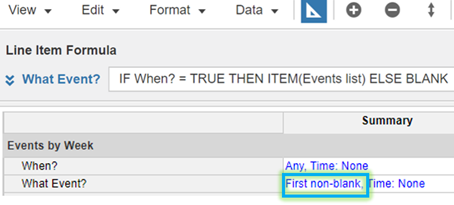
In this case, we want to find out if there is an event in a particular week, and what even it is. First, set ‘Event list’ with a top line item ‘All Events’. Then, input Dates and format them as Period for each Event on ‘Event list’.
Secondly, set a module with Events list and time as dimensions, where we post each event in a period when it occurs. As we assumed there is only one event per period, for ‘When?’ line item we can use ‘Any’ Summary Method and for ‘What Event?’ line item we can use ‘First Non-blank’ Summary Method.
Lastly, set a module with Time and one line item formatted as Events List, which will take the aggregation from the previous module – Events by Week.



Top tips

Follow Bedford on socials
Keep up-to-date with all things Anaplan and Bedford.
You may also be interested in
Upcoming training